
How to Clear Your Browser Cache
How to Clear Your Browser Cache
(When to Do It and What Happens)
Overview
Clearing your browser cache can resolve many common website issues such as:
- Pages not loading correctly
- Buttons not working
- Login problems
- Seeing outdated content
- Display or formatting issues
This article explains what clearing cache does, when you should do it, and how to do it safely.
What Is Browser Cache?
Your browser stores temporary files (images, scripts, and website data) to help websites load faster.
This stored data is called cache.
Over time, cached data can become outdated or corrupted, which may cause websites to behave incorrectly.
What Happens When You Clear Cache?
When you clear your browser cache:
✅ Stored temporary website files are deleted
✅ Websites may load slightly slower the first time afterward
✅ Display or loading issues are often resolved
Depending on what you select, it may also:
⚠️ Log you out of websites
⚠️ Remove saved website preferences
It does not:
- Delete your bookmarks
- Delete saved passwords (unless you specifically choose that option)
- Delete files on your computer
When Should You Clear Your Cache?
You should clear your cache if:
- A website looks broken or distorted
- You cannot log into a site that normally works
- A webpage is not updating after changes were made
- You are instructed to do so by IT
Clearing cache is often one of the first troubleshooting steps for web-based systems.
How to Clear Cache
Google Chrome (Windows & Mac)
- Click the three dots (top right).
- Click Settings.
-
Click Privacy and Security.
Click Clear browsing data.
Select:
- Time Range: All Time
- Check Cached images and files
- Click Clear Data.
- Close and reopen Chrome.


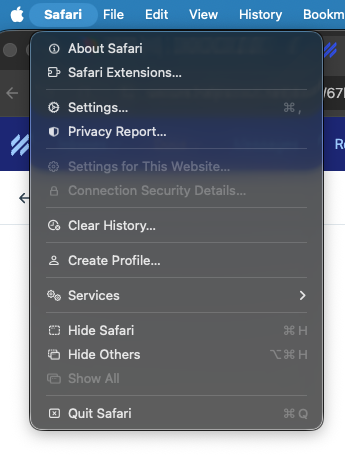
Safari (Mac)
- Open Safari.
- Click Safari (top menu).
- Click Settings (or Preferences).
- Go to the Privacy tab.
- Click Manage Website Data.
- Click Remove All.
- Restart Safari.
Alternative (if Develop menu enabled):
-
Click Develop → Empty Caches


Quick Shortcut (Chrome & Edge)
You can open the clear cache window quickly by pressing:
Windows:
Ctrl + Shift + Delete
Mac:
Command + Shift + Delete
If the Issue Continues
If clearing your cache does not resolve the issue:
- Restart your computer
- Try a different browser
- Submit a support ticket
Please include:
- Website name
- Screenshot of the issue
- Exact error message (if any)
IT Tip (Optional Internal Section)
For persistent web application issues:
- Test in Incognito / Private Mode
- Clear cookies for the specific site
- Check for browser extensions interfering