
What to do if you forgot your 1Password credentials
How to Reset Your 1Password Account
If you've forgotten your 1Password account password, there are two ways to regain access. Start with Method 1 (Emergency Kit) since it's the fastest option.
If that doesn't work, follow Method 2 to submit an IT support ticket.
Method 1: Reset Using Your Emergency Kit
Your Emergency Kit is a PDF document you were given when you first set up 1Password. It contains your Secret Key, which is required to sign in on a new device or after a password reset.
Steps
- Locate your Emergency Kit PDF. Check your personal cloud storage, a secure folder on your computer, or anywhere you saved it when you first set up your account.
- Go to Behavior Frameworks 1Password sign-in page —
behavioralframework.1password.comand select Forgot password or begin the account recovery flow. - Enter your Secret Key from the Emergency Kit when prompted, along with your email address.
- Set a new account password. Your new password must be at least 10 characters. Enter it twice to confirm, then click Next.
- You're back in. Sign in to 1Password using your new password across all your devices and browsers.
Tip: Once you're back in, save your updated Emergency Kit PDF somewhere safe — you'll need it if you ever lose access again.
Method 2: Request an Admin-Assisted Recovery
If you don't have your Emergency Kit (or it isn't working), an administrator can initiate a recovery on your behalf. Here's how to request that and what to expect once it's started.
Step 1 — Submit a Support Ticket
- Go to help.behavioralframework.com.
- In the support widget that appears on the right side of the page, confirm your Name and Email are correct.
- Set the Support Type to Other.
-
In the description field, enter something like:
"My 1Password recovery emergency kit doesn't work or I lost my 1Password emergency kit."
-
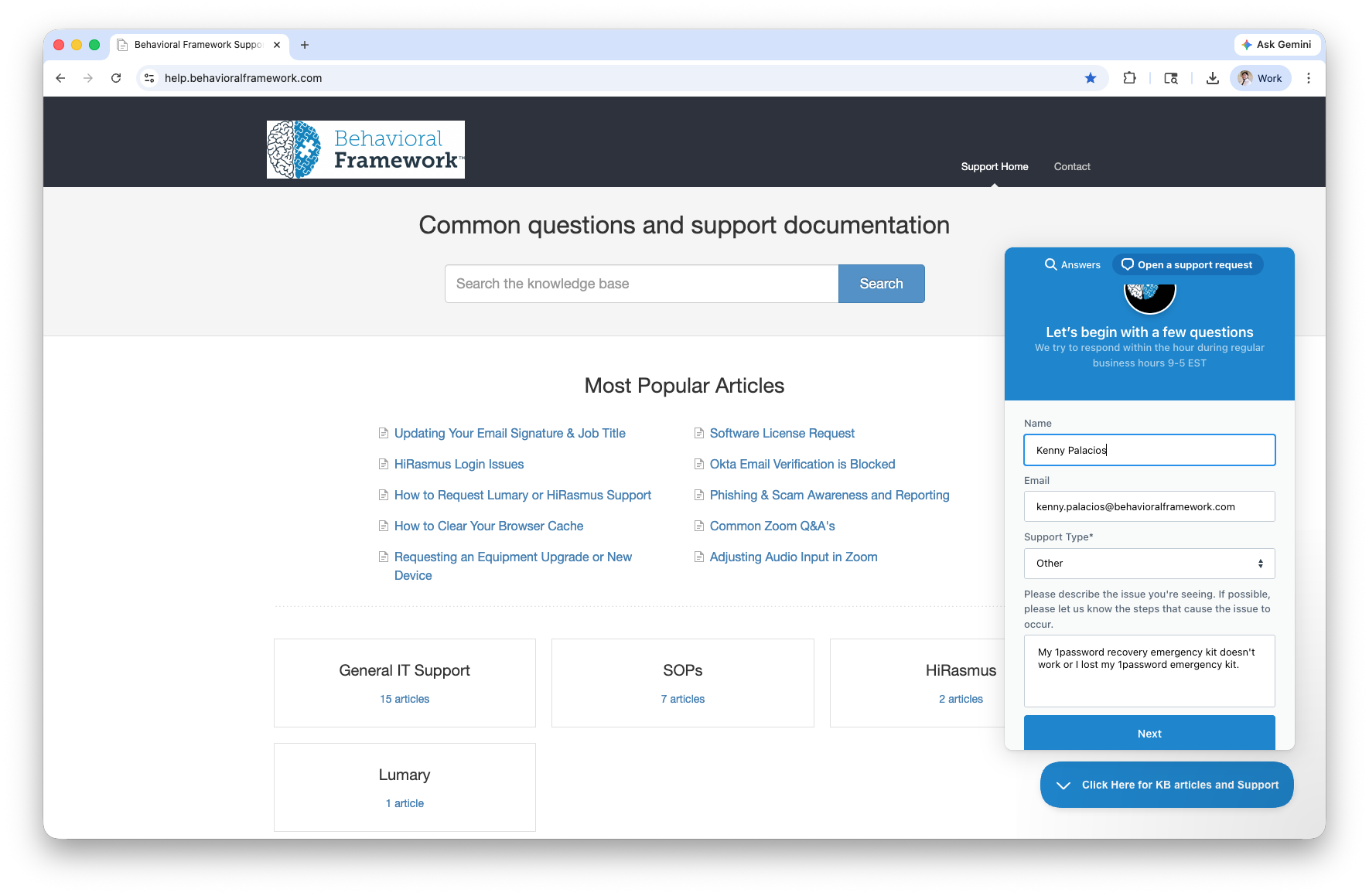
Click Next to submit your ticket. The IT team responds within the hour during regular business hours (9–5 EST).
Step 2 - Follow the Recovery Email from 1Password
Once an administrator starts the recovery process on their end, you'll receive an email from 1Password with the subject "Recover your 1Password account."
-
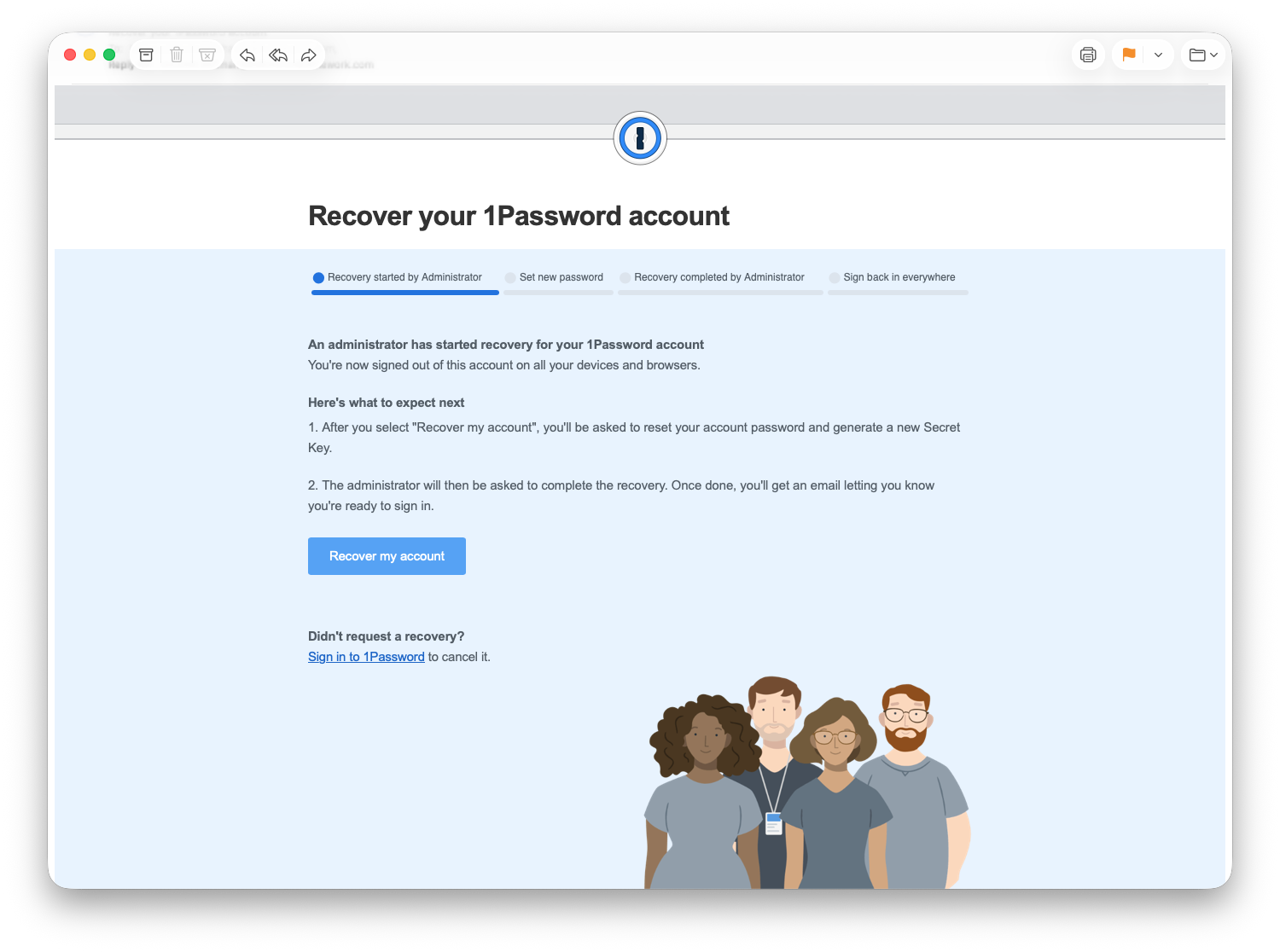
Open the email and click the recovery link inside.
-
On the recovery page, click Recover my account.
Note: You'll be signed out of your 1Password account on all devices and browsers at this point.
Step 3 — Verify Your Email Address
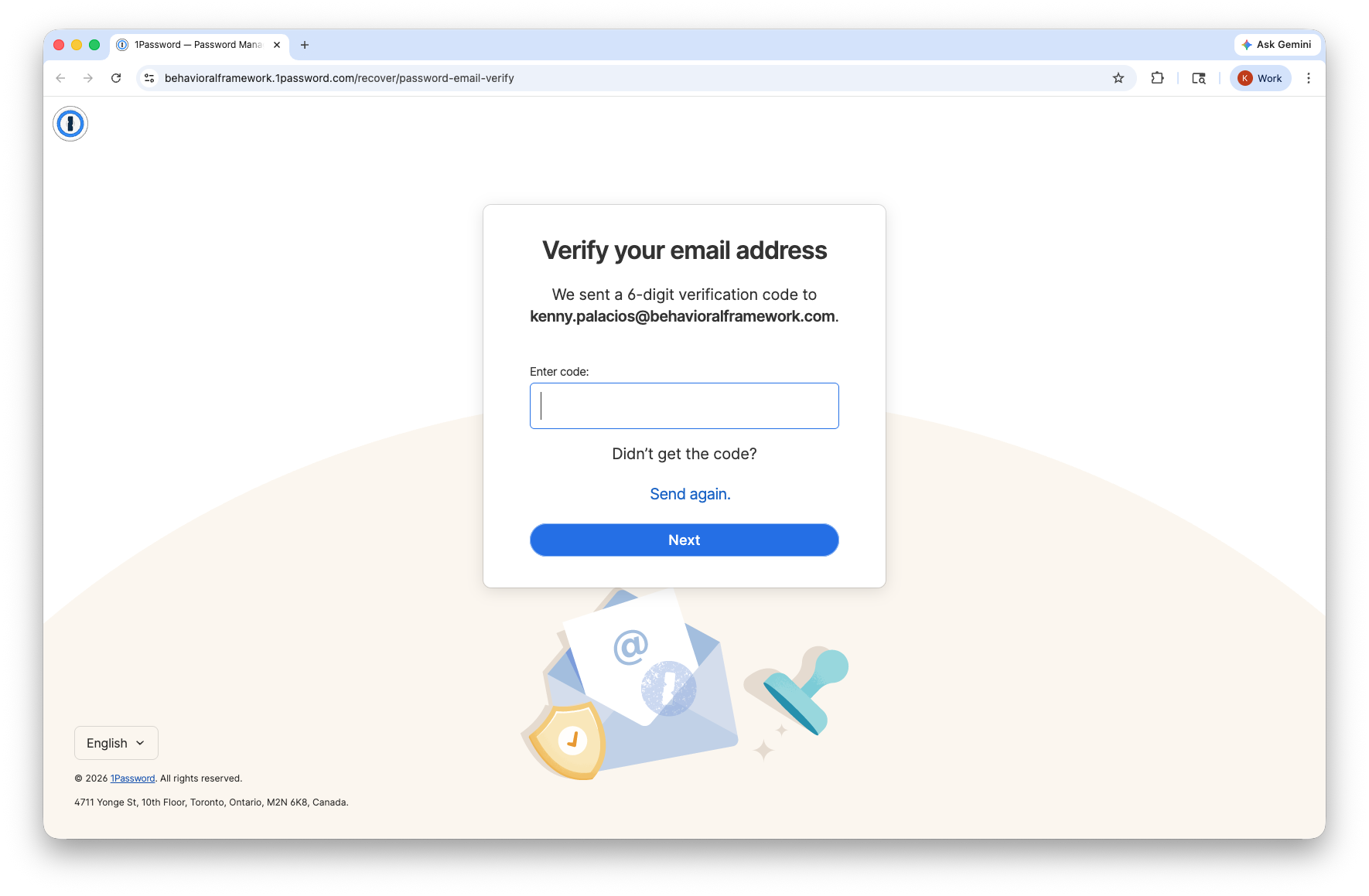
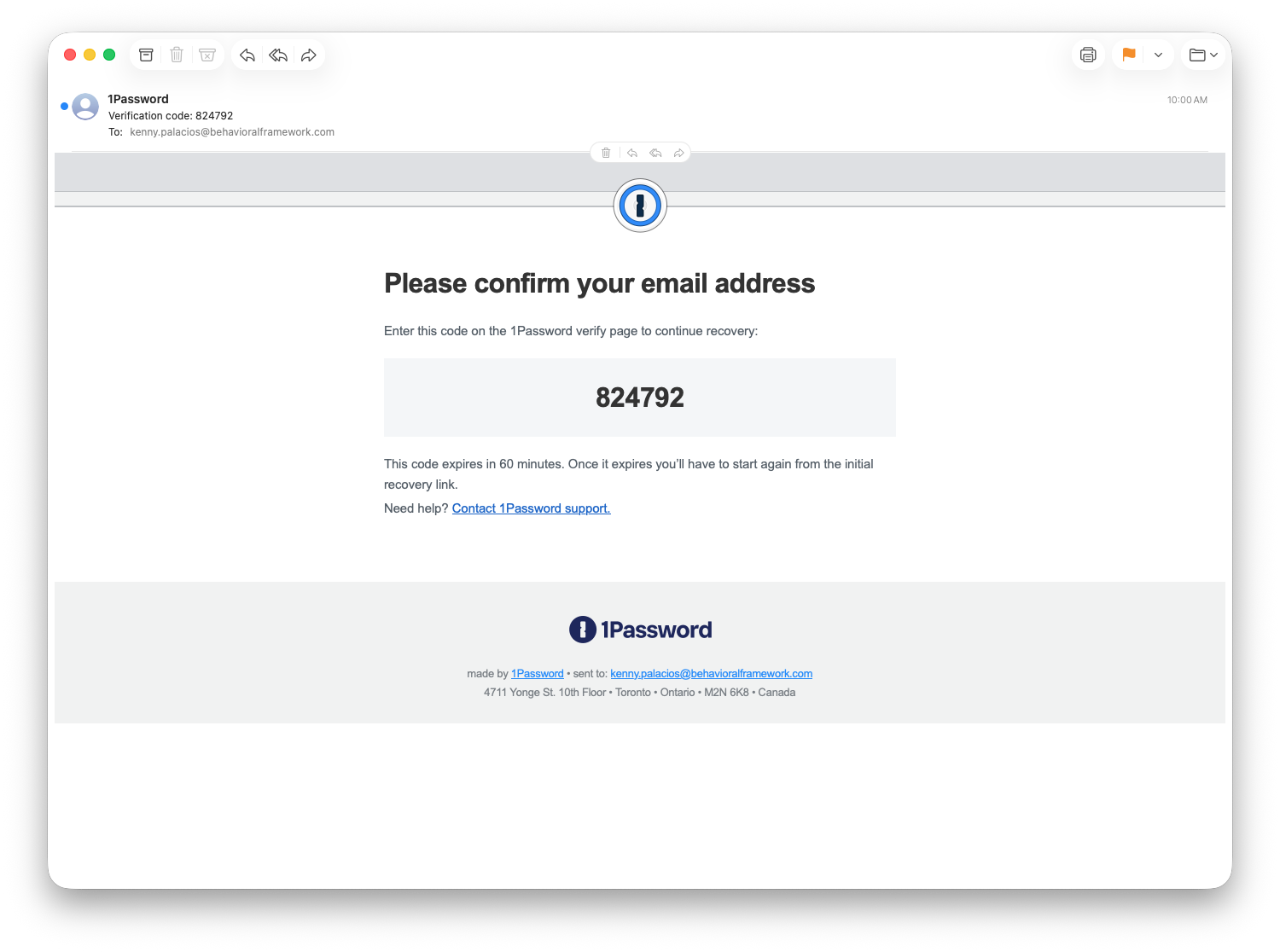
1Password will send a second email with a 6-digit verification code.
- Open the email with the subject "Verification code: XXXXXX".
-
Enter the code on the 1Password verify page to continue.
The code expires in 60 minutes. If it expires, you'll need to restart from the recovery link.
Step 4 — Set a New Account Password
- On the "Set your account password" page, enter a new password (10 or more characters).
-
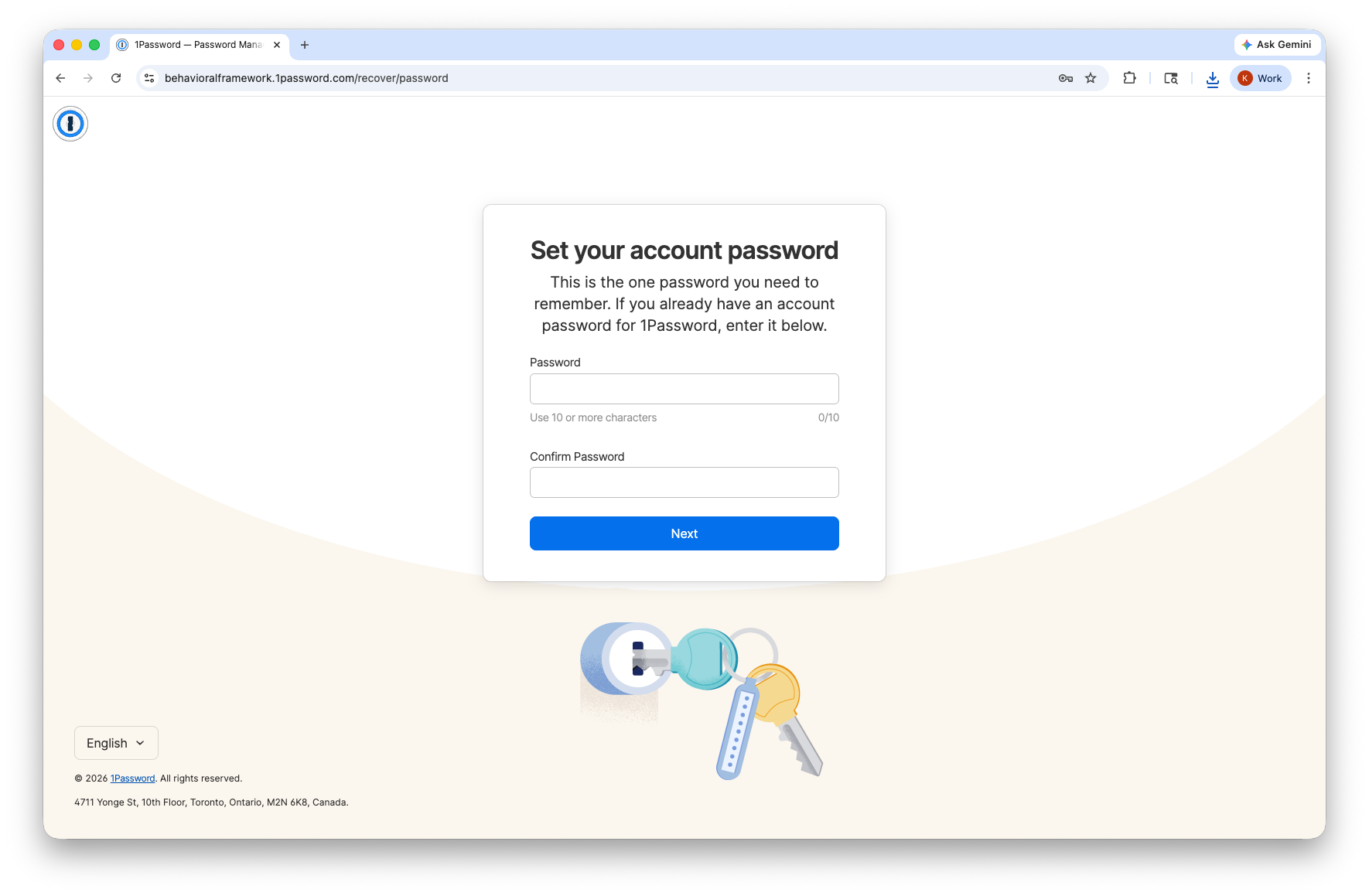
- Confirm your password in the second field.
- Click Next.
Step 5 — Download Your Updated Emergency Kit
- On the next screen, click Download PDF to save your updated Emergency Kit.
-
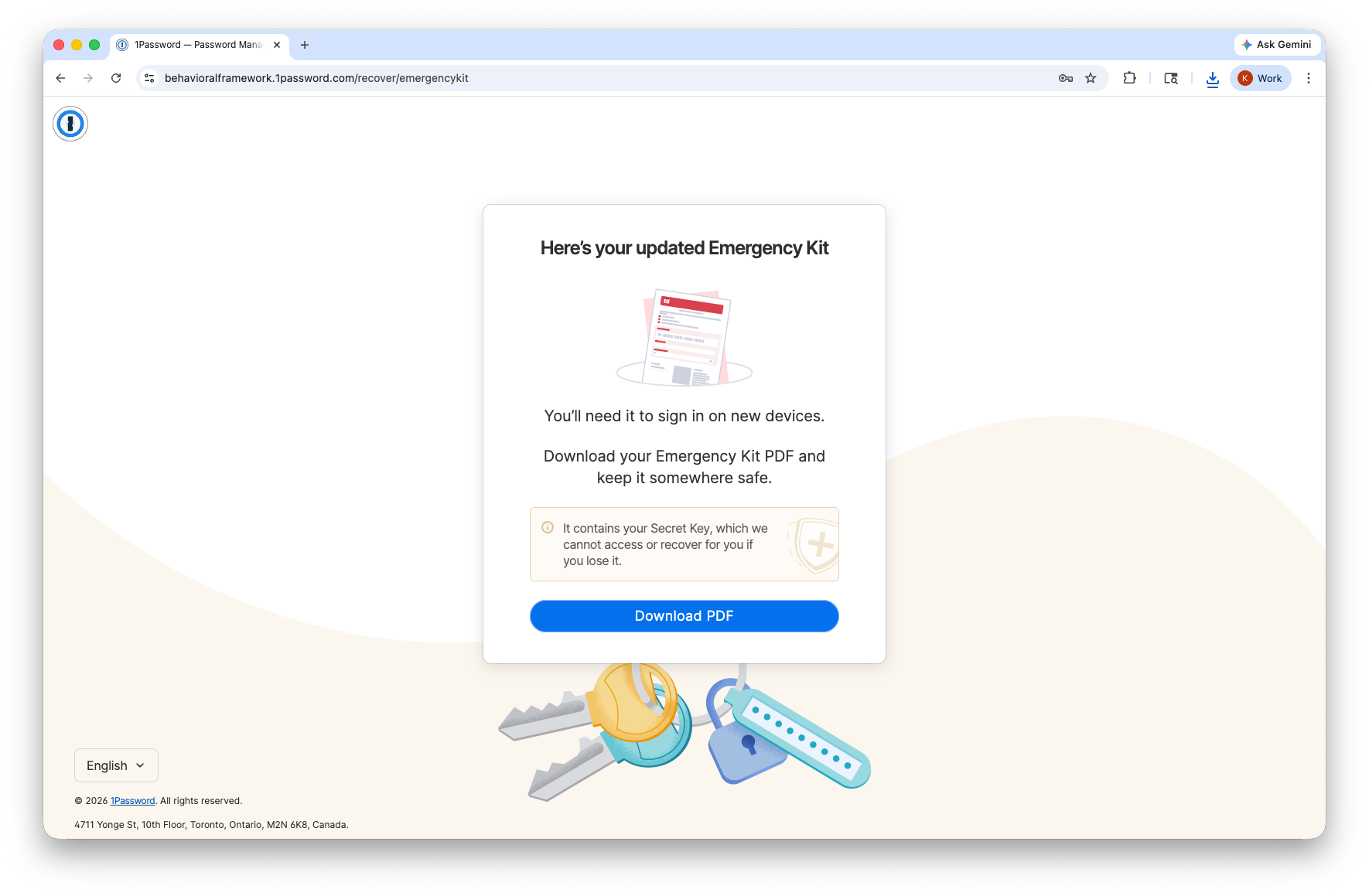
- Store it somewhere safe — this PDF contains your new Secret Key, which cannot be recovered by 1Password if lost.
Step 6 — Wait for Administrator Confirmation
After you set your new password, the administrator must take one final step to complete the recovery on their end.
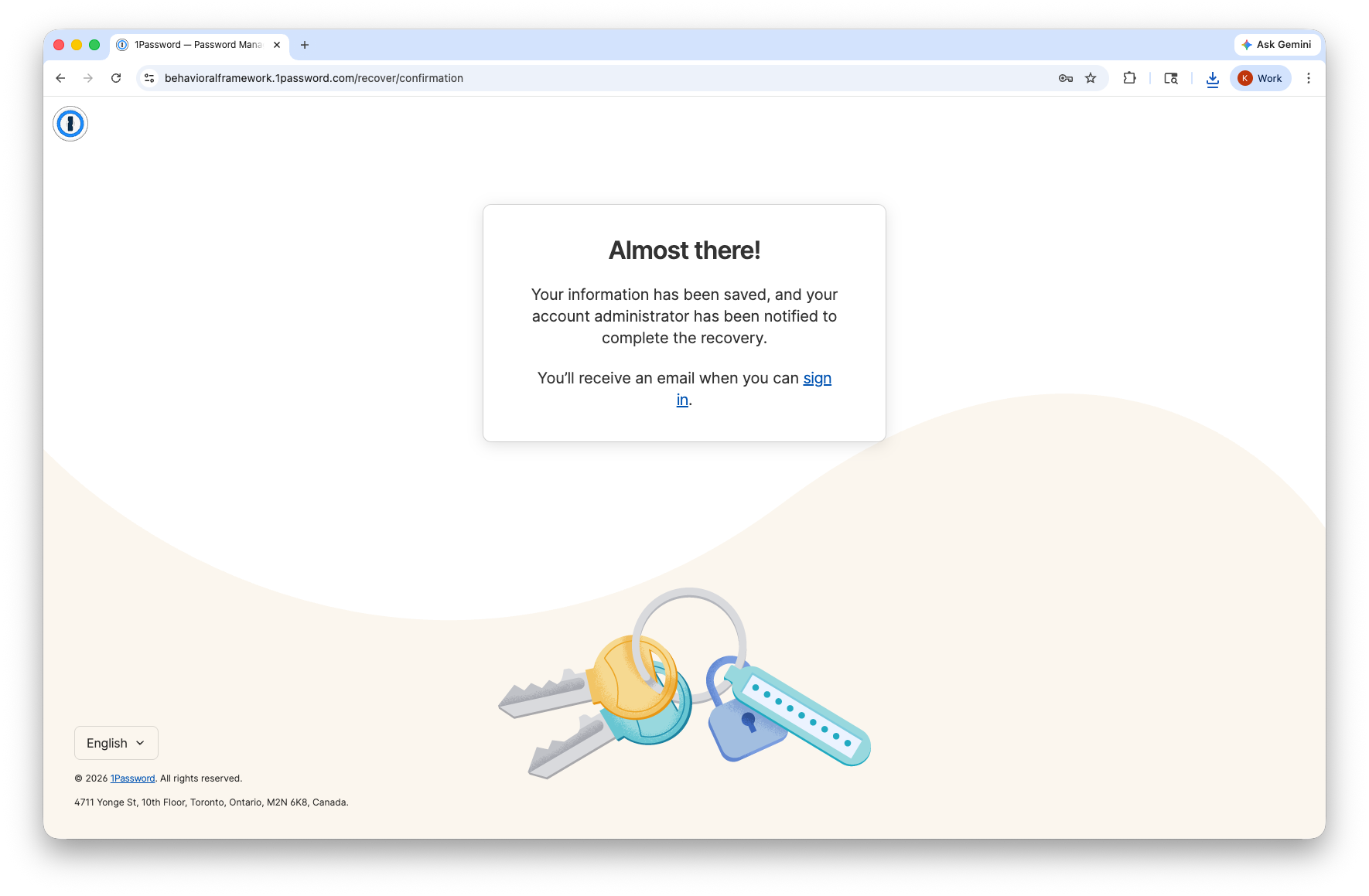
You'll receive a confirmation email when this is done with the subject "Recovery complete: Sign back in to your Behavioral Framework account."
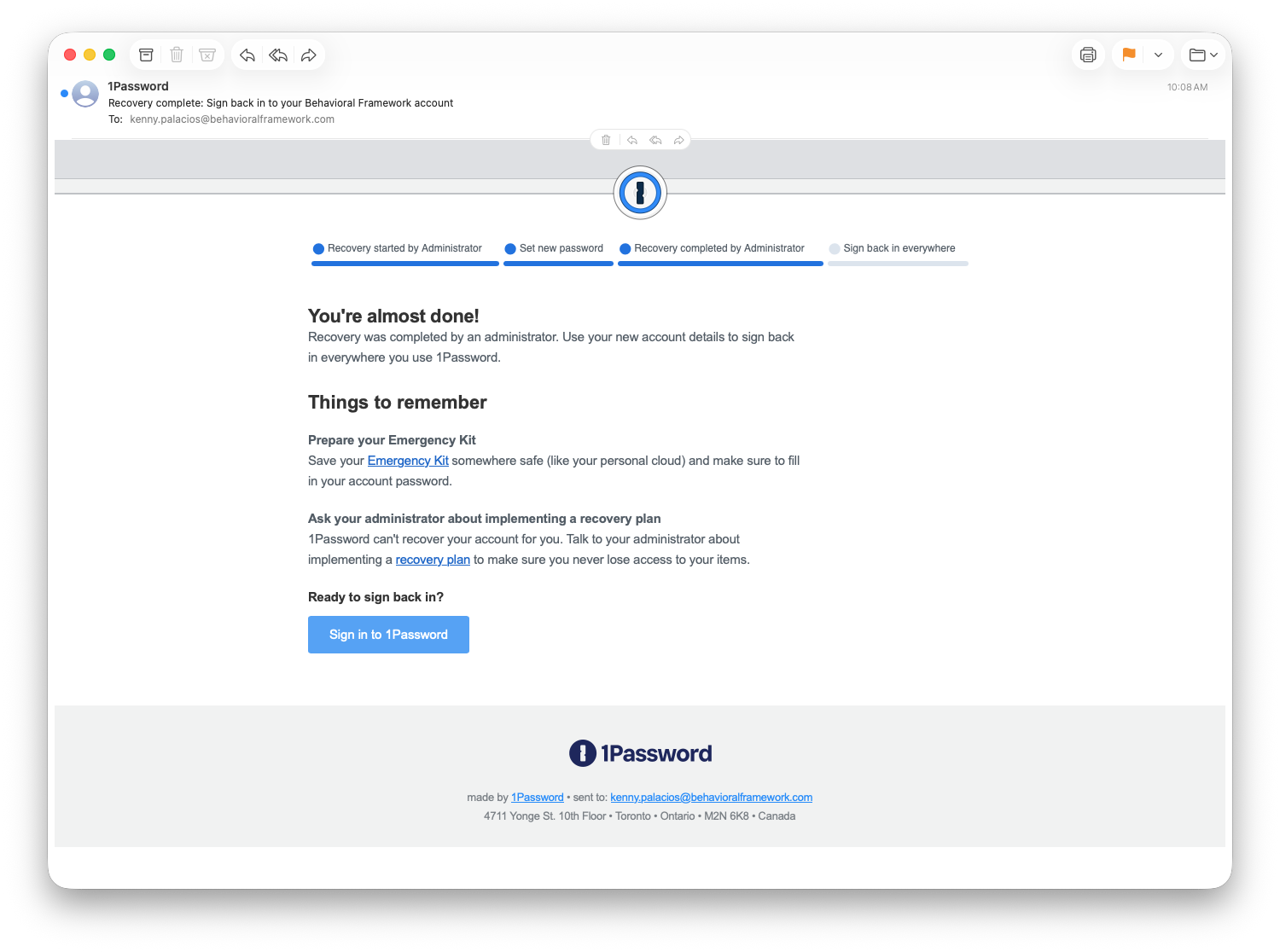
Once you receive that email, click Sign in to 1Password and log in with your new credentials. Once signed in - you should be good to go!
Still Having Trouble?
Contact IT support at help.behavioralframework.com