
How to Change Outbound Caller ID for Agents
Intro to outbound dialing for agents in RingCX
Outbound dialing refers to any call you place to a customer or lead from RingCX. Depending on your permissions and dial group, you can make outbound calls manually, fetch and click to dial leads, or the system will dial numbers for you.
During an outbound call, you can read from a script (if available), take notes, transfer the call, and submit a disposition.
Note:
- Before you can place outbound calls, your admin must turn on outbound calling permissions for your account and assign you to at least one dial group.
- You can be assigned to multiple dial groups, but you can only log in to one dial group at a time.
Where are you accessing RingCX?
- RingCX in the RingCentral app
- RingCX standalone
Making calls using RingCX in the RingCentral app
- Sign in to the RingCX in the RingCentral app.
-
Click the
Agentin the left navigation bar, then click Start working
-
Click Session info in the top right to view your settings. To make an update, click
Update settings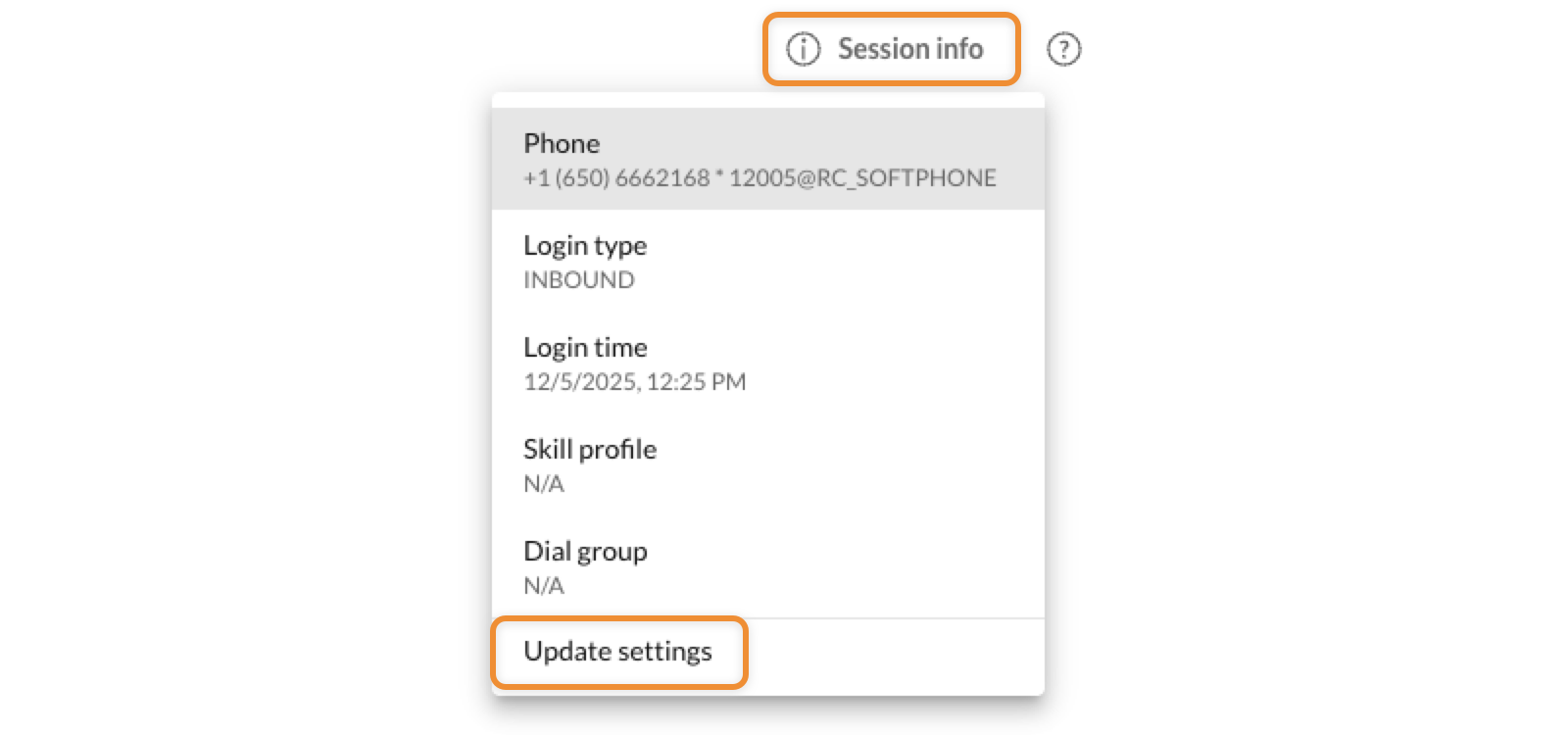
- To make a manual outbound call:
-
Click
My Callsin the left navigation bar.
- Update the caller ID if needed. To make a call from your own extension, make sure the correct caller ID is selected.
- Enter a name or number, then select the result to place the call.
-
- When you make a call connected to a campaign, you’ll see one of these dialing options based on your permissions and dial group:
-
Preview dialing: To fetch leads from a lead list, click
Dialingin the left navigation bar, then click
Get leads. You can review each lead’s details before placing the call.
- Predictive dialing: The system automatically dials one or more leads, and connects you when the call is answered.
-
Progressive dialing: Click
Dialingin the left navigation bar, then click
Start dialing. The system automatically dials one or more leads after a preset review time set by your admin.
-
- The Active Calls tab will display call details, customer details, your customer database, or an agent script, if available. The screen you see will depend on how your queue and account were set up.
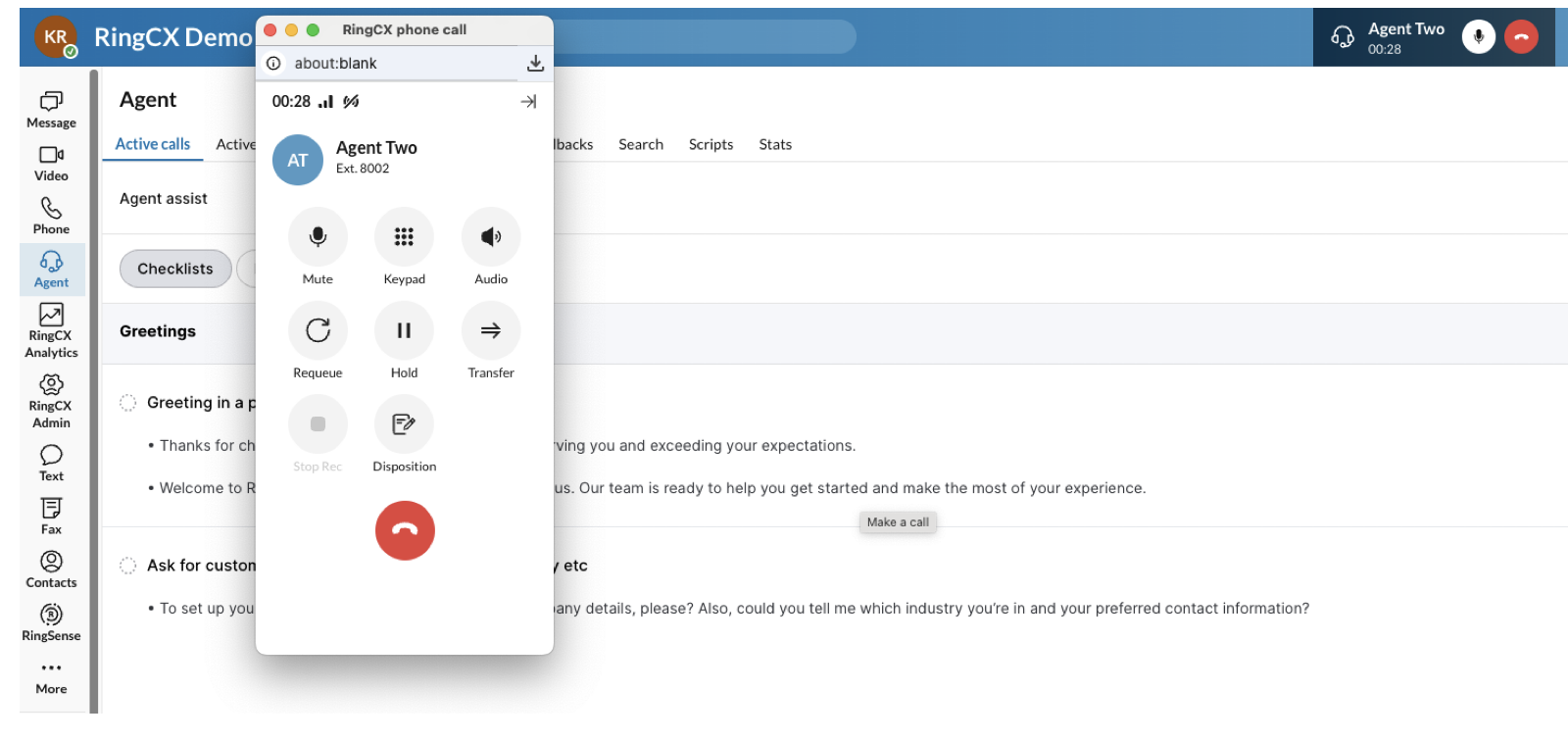
- Use the dialpad to access call controls:
- Mute or hold
- Record
- Take call notes
- Call an expert for a consultation call
-
- After a call, you can:
- Update the call notes
- Submit a disposition to record the call outcome
- Schedule a callback if this option is available for your campaign
For more info on making outbound calls, visit Making a manual outbound call in RingCX and Making an outbound call using dialer modes in RingCX.
Additional resources